Remote work was supposed to be the ultimate freedom, but for many, it has become a literal pain in the neck. When the office moved into our living rooms, we traded high-end ergonomic chairs for dining room stools, sofas, and even beds. The result? A massive spike in Musculoskeletal Disorders (MSDs), repetitive strain injuries, and chronic fatigue.
Ergonomics isn't just a corporate buzzword; it is the science of fitting a workspace to the user’s needs. When you get it wrong, you aren’t just "uncomfortable": you are putting mechanical stress on your joints, nerves, and muscles that can lead to long-term physical damage. This guide breaks down the biomechanics of a healthy workstation and provides a data-driven blueprint to fixing your posture once and for all.
The Biomechanics of the "Neutral Posture"
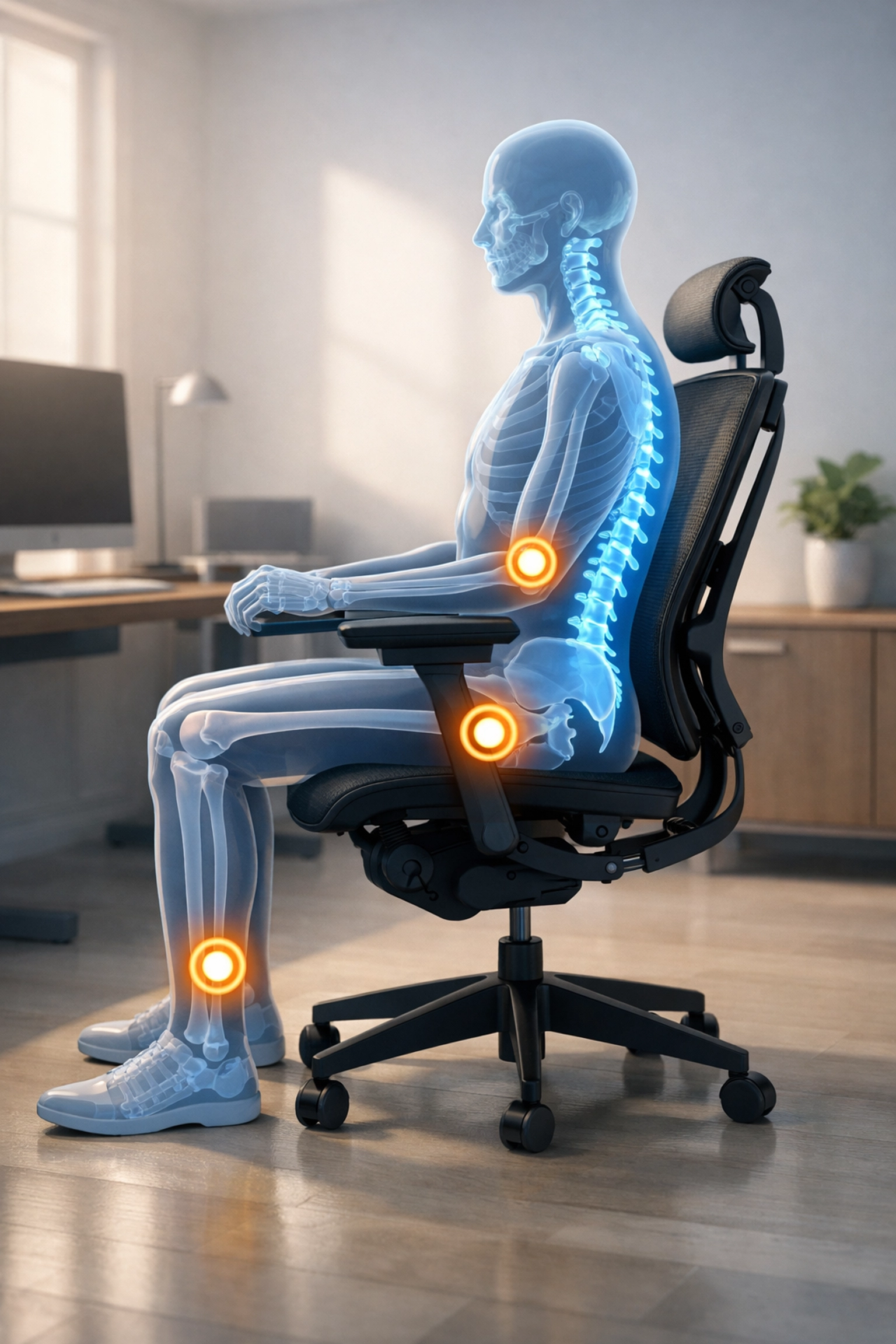
To fix your posture, you first need to understand the "Neutral Posture." This is the position where your body is aligned and balanced while sitting, standing, or lying down, placing the least amount of strain on supporting muscles and ligaments.
When you slouch, you create a "C-shape" in your spine. This compresses the front of your intervertebral discs and overstretches the ligaments in your back. Conversely, sitting too rigidly straight creates muscle tension. The goal is to maintain the spine's natural "S-curve."
The 90-90-90 Rule
A gold standard in ergonomics is the 90-90-90 rule. This means:
- Elbows: Bent at 90 degrees, tucked close to your torso.
- Hips: Bent at 90 degrees (or slightly more, up to 100 degrees) while seated.
- Knees: Bent at 90 degrees, with feet flat on the floor.
1. The Foundation: Your Ergonomic Chair
Your chair is the most important piece of equipment in your home office. If you are sitting on a wooden kitchen chair, you are fighting a losing battle against gravity.
Seat Height and Depth
Adjust your chair height so your feet are flat on the floor. If your feet dangle, blood flow is restricted in the back of your thighs, which can lead to swelling or deep vein thrombosis (DVT). If the chair is too low, it puts excessive pressure on your sit-bones (ischial tuberosities).
The seat depth is equally vital. You should be able to fit 2–3 fingers between the edge of the seat and the back of your knees. This is known as the "waterfall edge," and it prevents the chair from cutting off circulation to your lower legs.
Lumbar Support
Your lower spine (the lumbar region) has a natural inward curve. Without support, this curve collapses. Most high-quality chairs have an adjustable lumbar piece. It should fit snugly into the small of your back. If you’re working with a basic chair, a rolled-up towel or a dedicated lumbar pillow can mimic this effect, provided it stays centered.
2. Desk Height and Arm Positioning
Most standard desks are 29 to 30 inches high. For many people: especially those under 5'10": this is actually too high. When a desk is too high, you instinctively raise your shoulders to reach the keyboard, leading to upper trapezius tension and "tech neck."
The Keyboard and Mouse
Your keyboard and mouse should be positioned so that your forearms are parallel to the floor. Your wrists should remain in a neutral, straight position: not tilted up or down.
Pro-Tip: Stop using the "feet" on the back of your keyboard. Tilting the keyboard up forces your wrists into extension, which compresses the carpal tunnel. Keep the keyboard flat.

3. Visual Ergonomics: Monitor Placement
Your neck follows your eyes. If your monitor is too low, you will lean forward (protraction), adding up to 60 pounds of pressure to your cervical spine.
Height and Distance
The top third of your monitor screen should be at eye level. This allows you to look slightly downward at the center of the screen without tilting your head.
- Distance: The monitor should be about an arm’s length away (20–30 inches). If you have to lean in to read text, increase the font size rather than moving your head closer.
- Dual Monitors: If you use two screens equally, place them in a "V" shape directly in front of you. If one is primary, place it centered and the secondary to the side at a slight angle.
4. The Laptop Trap
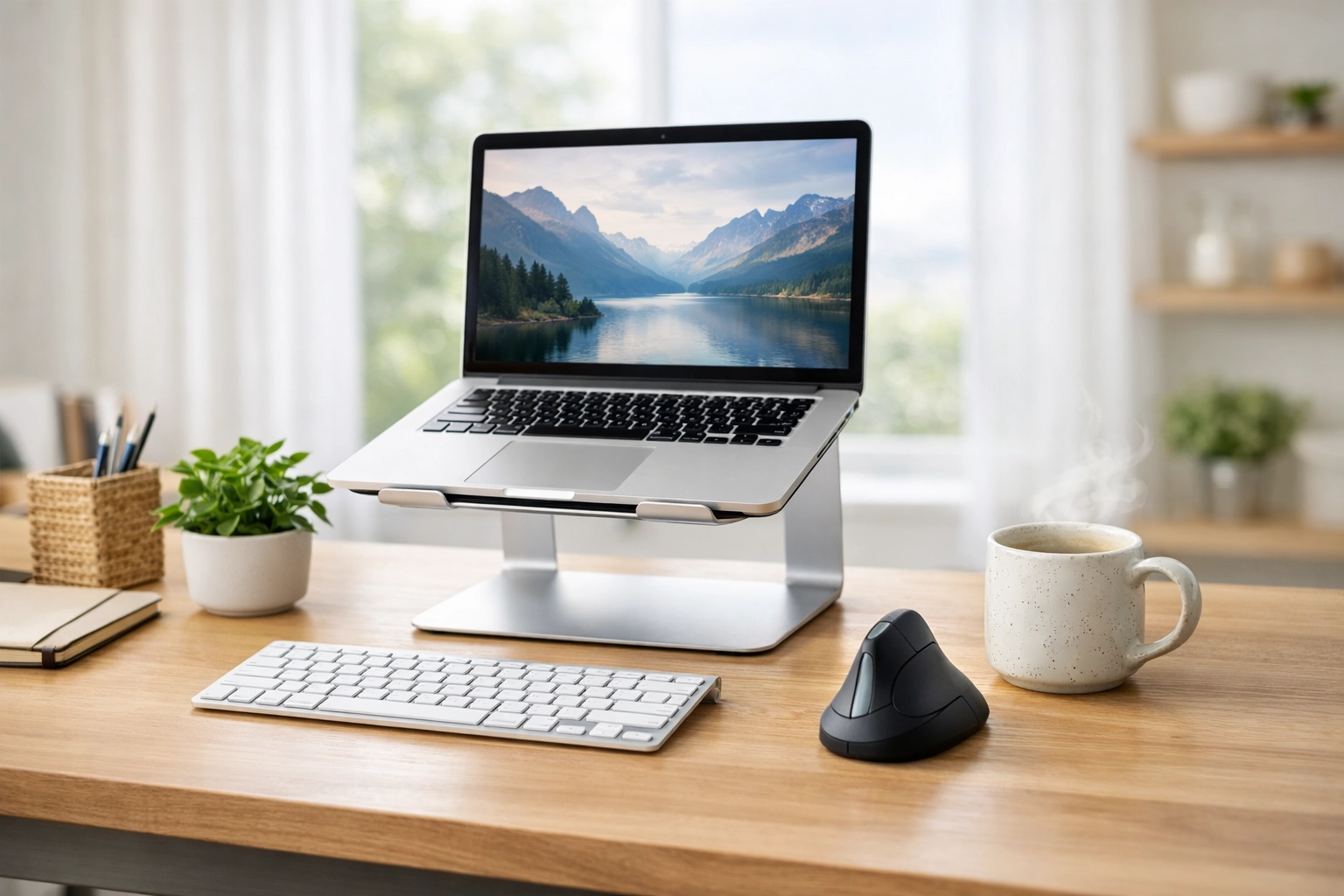
Laptops are an ergonomic disaster because the keyboard and screen are connected. You cannot have the keyboard at elbow height and the screen at eye level simultaneously.
The Fix
If you are working on a laptop for more than an hour a day, you must decouple the components.
- Laptop Stand: Use a stand (or a stack of books) to raise the screen to eye level.
- External Peripherals: Use a separate Bluetooth or USB keyboard and mouse. This allows your hands to stay at the correct ergonomic height while your neck remains neutral.
5. Movement: The "Static Load" Problem
Even the most "perfect" posture becomes harmful if held too long. This is called static loading. Your muscles need movement to pump blood and clear metabolic waste.
The Sit-Stand Strategy
Sit-stand desks are excellent, but only if used correctly. Research suggests a 1:1 or 2:1 ratio. For every hour of work, try sitting for 40 minutes and standing for 20. When standing, ensure you aren't "locking" your knees or leaning on one hip.
The 20-20-20 Rule
To prevent digital eye strain (which causes you to lean forward and ruin your posture): Every 20 minutes, look at something 20 feet away for at least 20 seconds. This relaxes the ciliary muscles in your eyes.
6. Data-Driven Insights: The Cost of Poor Ergonomics
According to OSHA (Occupational Safety and Health Administration), work-related MSDs are among the most frequently reported causes of lost or restricted work time.
| Feature | Ideal Setup | Potential Risk if Incorrect |
|---|---|---|
| Eye Level | Top 1/3 of screen | Neck strain, headaches |
| Elbow Angle | 90° – 100° | Carpal Tunnel, Tennis Elbow |
| Lumbar Support | Firm, in S-curve | Lower back pain, disc herniation |
| Feet Position | Flat on floor/footrest | Poor circulation, hip pain |

7. DIY Ergonomic Hacks
You don't need a $1,200 chair to improve your health today. Here are the most effective "budget" fixes:
- The Footrest: If your chair is at the right height for the desk but your feet don't reach the floor, use a repped-up box or a stack of old textbooks as a footrest.
- The Seat Cushion: If your chair is too hard, a firm pillow can help distribute weight and prevent "bottoming out" on the seat pan.
- The Monitor Lift: Use a stable box or a reams of printer paper to get that monitor up to eye level.
Summary Checklist for a 5-Minute Fix
- Clear the space under your desk: Ensure your legs have room to move.
- Adjust chair height: Align elbows with the desk surface.
- Check feet: Are they flat? If not, find a footrest.
- Raise the screen: Is the top of the monitor at eye level?
- Center the tools: Is your "G" and "H" key centered with your belly button?
Setting up an ergonomic workspace is an investment in your career longevity. By prioritizing your physical alignment, you reduce fatigue, increase focus, and prevent the chronic aches that often define the modern remote work experience.
About the Author
Malibongwe Gcwabaza is the CEO of blog and youtube, a digital-first organization dedicated to optimizing remote work culture and productivity. With a background in leadership and a passion for health-conscious technology use, Malibongwe focuses on bridging the gap between high-performance output and physical well-being. He believes that the future of work isn't just about where we work, but how we support the humans doing the work.
About the Author