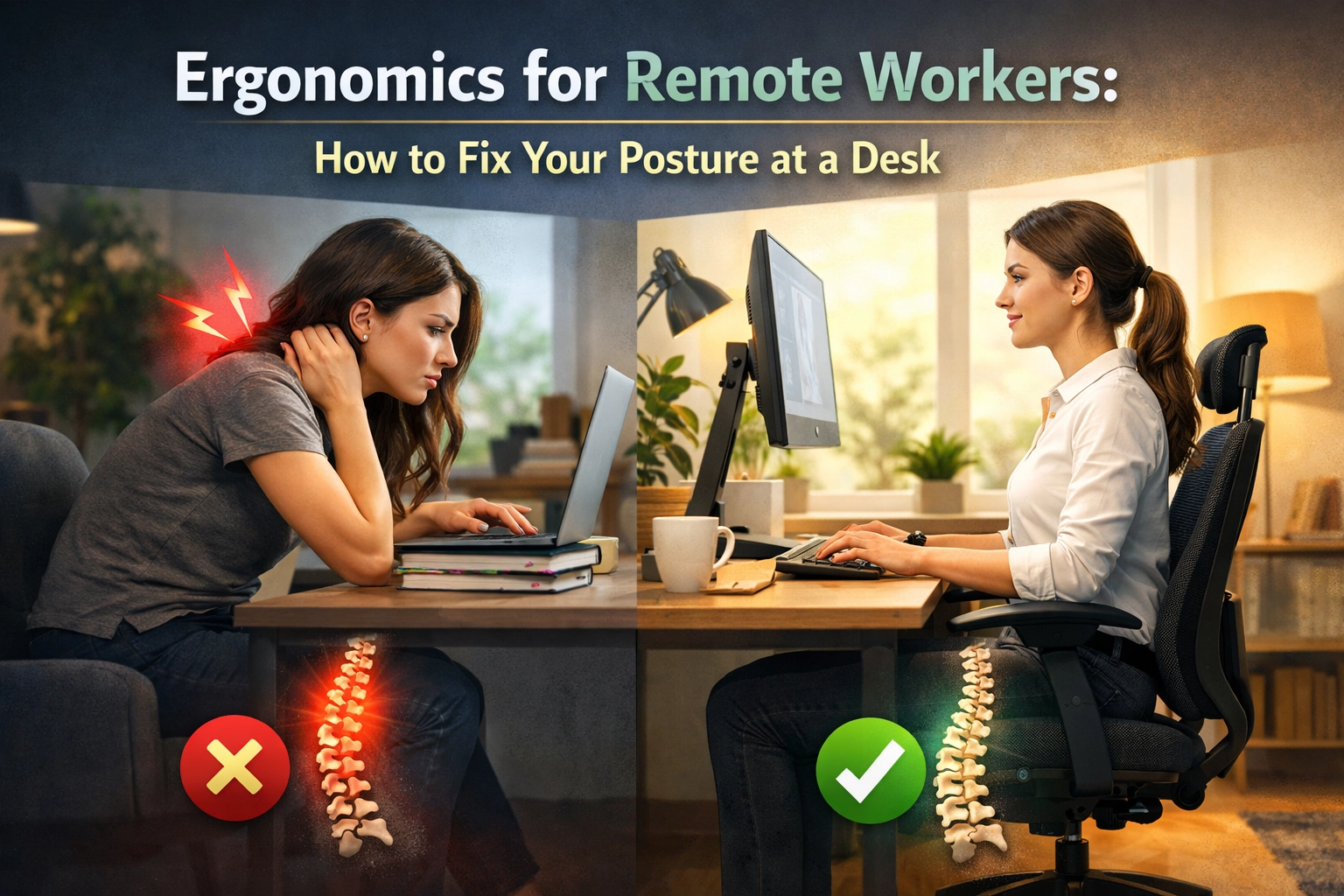
By 2026, the shift to remote work has solidified, but so has the "Remote Work Slouch." While the freedom to work from a home office: or a couch: is a perk, the physiological cost is becoming clear. Musculoskeletal disorders (MSDs) are the leading cause of disability worldwide, and for remote workers, these often stem from poorly configured workstations.
Fixing your posture isn't just about "sitting up straight." It is a technical calibration of your environment to match your body’s biomechanics. This guide breaks down the science of ergonomics into actionable, data-driven steps to transform your home office into a longevity-focused workspace.
The Biomechanics of the "Neutral Position"
The goal of ergonomics is to maintain the body in a neutral position. This is the posture where your joints are naturally aligned, reducing stress and strain on the muscles, tendons, and skeletal system. When you deviate from neutral: such as hunching over a laptop: you create "static loading." This forces your muscles to work harder just to hold you in a sub-optimal position, leading to inflammation and chronic pain.
Key Indicators of Neutral Posture:
- Cervical Spine: Your head is balanced directly over your shoulders, not leaning forward.
- Lumbar Spine: The natural inward curve of your lower back is supported.
- Elbows: Bent between 90 and 120 degrees, kept close to the body.
- Wrists: Straight and in line with the forearms (no upward or sideways bending).
- Hips/Knees: Bent at approximately 90 degrees, with feet flat on the floor.
1. The Foundation: Selecting and Adjusting Your Chair
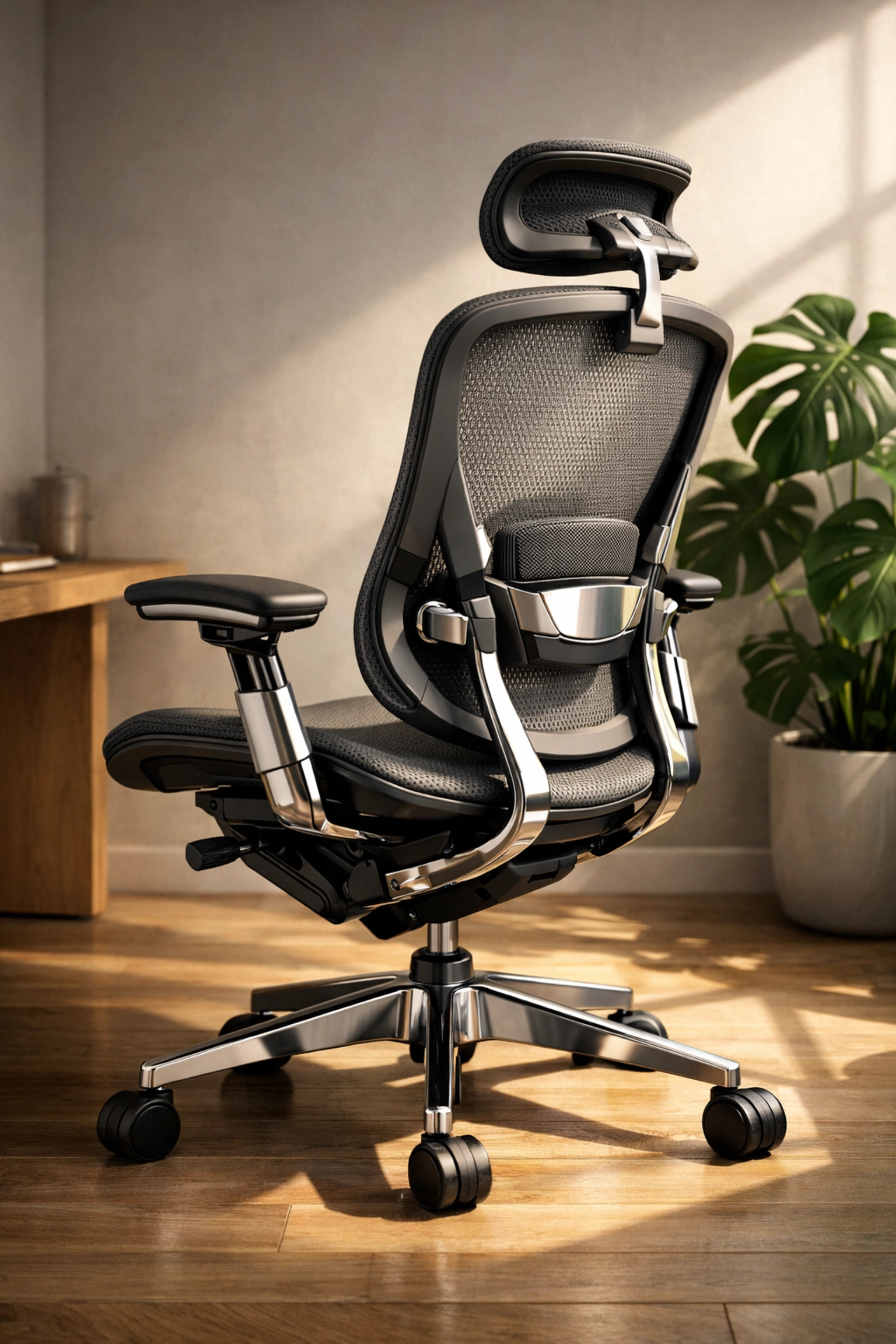
Your chair is the most critical piece of equipment. Most "office chairs" fail because they are built for aesthetics rather than anatomy. A high-quality ergonomic chair must offer five points of adjustment: height, seat depth, backrest tilt, lumbar support, and armrest height.
The Seat Height and Depth
Adjust the seat height so your feet are flat on the floor. If your feet dangle, blood flow to the lower legs is restricted, increasing the risk of deep vein thrombosis (DVT). If the chair is too high and cannot be lowered, use a footrest.
The seat depth should allow for two to three inches of space between the edge of the seat and the back of your knees. If the seat is too deep, it will press against the back of your knees, restricting circulation; if it's too shallow, your thighs won't be properly supported.
Lumbar Support: Protecting the L3-L5 Vertebrae
The lower back (lumbar region) naturally curves inward. Without support, the spine tends to flatten or "C-sit," which puts immense pressure on the spinal discs.
- The Fix: Ensure the chair’s lumbar curve fits into the small of your back. If your chair lacks this, a high-density foam roll or even a rolled-up towel can bridge the gap.
2. Desk Height and Arm Alignment
A common mistake in remote setups is using a standard dining table (usually 30 inches high) as a desk. For most people, this is too high, forcing the shoulders to shrug and the wrists to angle upward to reach the keyboard.
The 90-Degree Rule
Your desk height should allow your forearms to be parallel to the floor while your shoulders remain relaxed.
| User Height | Suggested Desk Height (Sitting) |
|---|---|
| 5'0" (152 cm) | 22" – 23" |
| 5'5" (165 cm) | 24" – 25" |
| 5'10" (178 cm) | 27" – 28" |
| 6'2" (188 cm) | 30" + |
If your desk is too high and non-adjustable, raise your chair and use a footrest to ensure your legs remain in the neutral 90-degree position.
3. Monitor Ergonomics: Ending "Tech Neck"
The average human head weighs between 10 and 12 pounds. For every inch you tilt your head forward to look at a screen, the effective weight on your neck muscles increases by 10 pounds. A 45-degree tilt makes your head feel like it weighs nearly 50 pounds.
Elevation and Distance
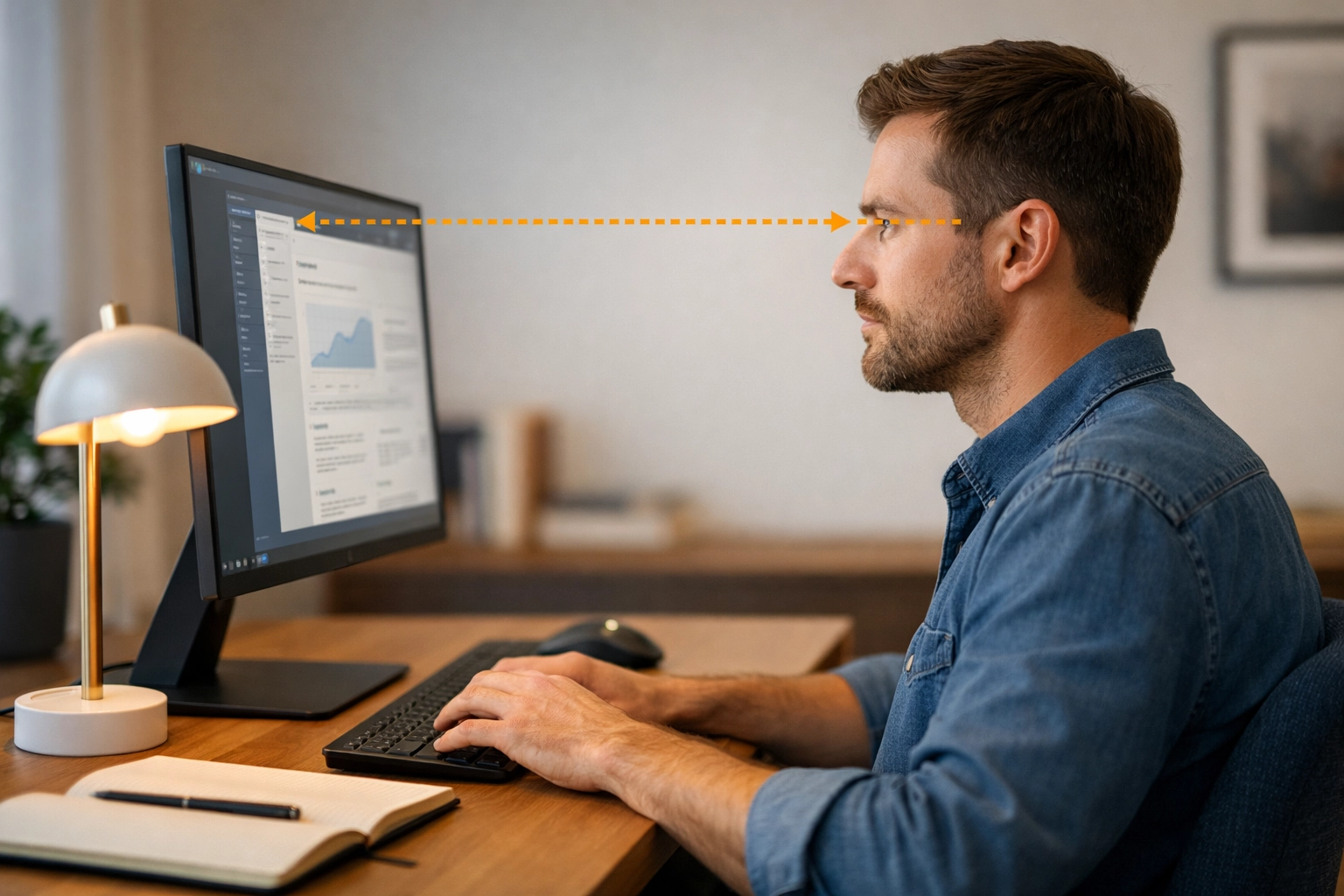
- Height: The top one-third of your monitor should be at eye level. This ensures that your natural gaze (which is slightly downward, about 15 degrees) hits the center of the screen without you needing to tilt your head.
- Distance: Place the monitor about an arm’s length away (20 to 30 inches). If you have to lean forward to read, increase the font size or move the monitor closer: do not move your head toward the screen.
- Dual Monitors: If you use two screens equally, angle them in a "V" shape directly in front of you. If one is primary, place it directly in front and the secondary to the side.
4. Input Devices: Keyboard and Mouse Placement
Repetitive Strain Injury (RSI) often starts at the wrist. Many workers use the "kickstands" on the back of their keyboards, which tilts the keyboard upward. This causes extension, where the top of the hand moves toward the forearm, compressing the carpal tunnel.
The Neutral Wrist
- Keep it Flat: Use the keyboard flat or even at a slight negative tilt (sloping away from you) to keep wrists straight.
- The Mouse: Keep the mouse as close to the keyboard as possible. Reaching out to the side causes "shoulder abduction," which leads to rotator cuff strain over time.
- Vertical Mice: If you experience wrist pain, consider a vertical mouse. This keeps the hand in a "handshake" position, preventing the radius and ulna bones in the forearm from crossing and compressing nerves.
5. The Dynamic Element: Movement and "Hormesis"
Even a perfect ergonomic setup becomes toxic if maintained for eight hours straight. Static posture leads to "ischemia," a restriction in blood supply to tissues.
The Sit-Stand Ratio
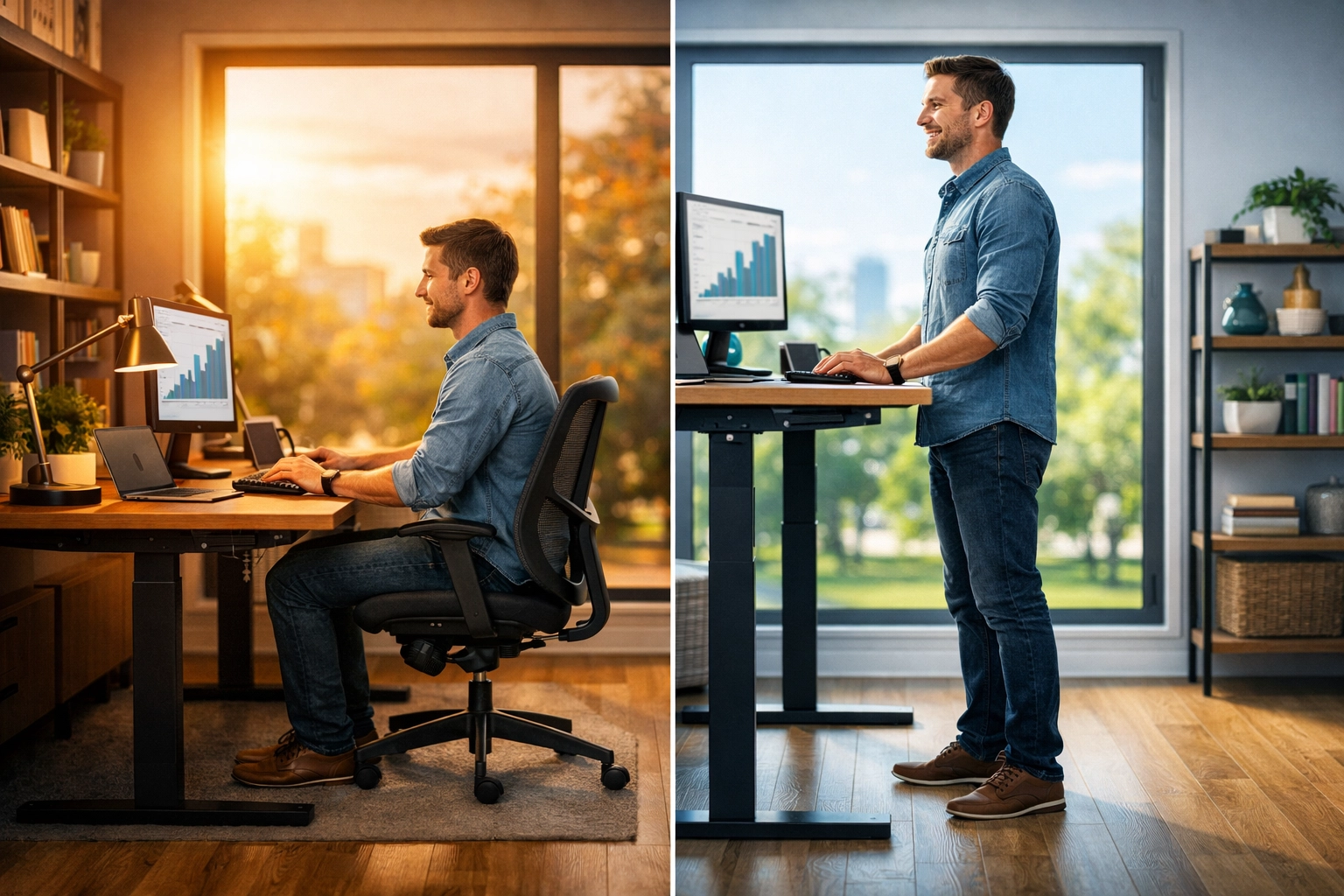
Research suggests the ideal ratio is 20:8:2.
- 20 minutes of sitting in a neutral posture.
- 8 minutes of standing (using a standing desk).
- 2 minutes of moving or stretching.
The 20-20-20 Rule for Eye Health
To prevent digital eye strain, every 20 minutes, look at something 20 feet away for at least 20 seconds. This allows the ciliary muscles in the eye to relax.
6. Environmental Bio-Hacks for Productivity
Posture is influenced by your environment. If your room is too dark, you will naturally lean closer to your screen. If your chair is cold, you will hunch your shoulders to retain heat.
- Lighting: Use task lighting to illuminate paper documents and ensure your monitor brightness matches the ambient light of the room.
- Blue Light: Use software filters (like Night Shift or f.lux) in the late afternoon to prevent the suppression of melatonin, which can ruin the sleep architecture needed for muscle and tissue repair.
- Proprioception: Place a small mirror next to your monitor. Occasionally looking at yourself provides biofeedback, making you instantly aware if you have slipped into a slouch.
The 2026 Home Office Audit Checklist
Before you start your next work session, run through this technical checklist:
- Feet: Flat on the floor or on a solid footrest.
- Knees: At or slightly below hip level.
- Back: Firmly against the chair’s backrest with lumbar support engaged.
- Shoulders: Relaxed, not hunched toward the ears.
- Elbows: Close to the torso, bent at ~100 degrees.
- Wrists: Straight, not resting on a hard sharp edge.
- Screen: Top of the display at eyebrow level.
- Distance: Screen is one arm's length away.
The Path Forward
Ergonomics is an investment in your "Healthspan." The goal is to ensure that your body is as functional at age 80 as it is today. By optimizing your workspace, you aren't just preventing back pain; you are reducing systemic inflammation, improving respiratory volume (slouching compresses the diaphragm), and boosting cognitive focus.
Your desk should be a tool for high performance, not a source of physical decay. Fix your setup today, and your future self will thank you.
About the Author: Malibongwe Gcwabaza
Malibongwe Gcwabaza is the CEO of blog and youtube, a leading digital platform dedicated to the intersection of technology, longevity, and human performance. With a background in organizational leadership and a passion for bio-optimisation, Malibongwe focuses on how modern professionals can leverage science-backed habits to thrive in an increasingly digital world. When he’s not refining business strategies, he is exploring the latest in functional fitness and neuro-wellness.
About the Author